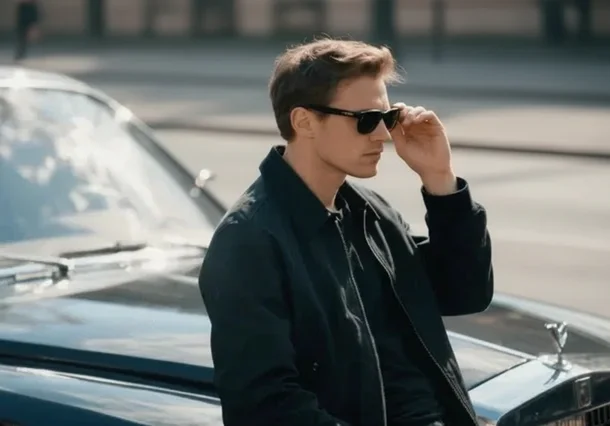
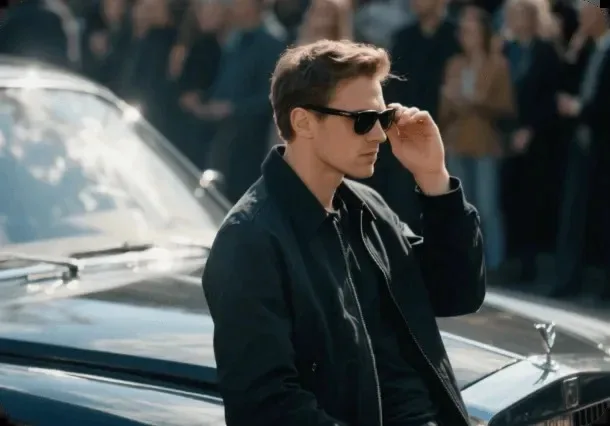
Remove person from photo with AI. Upload a picture and the people in the background are gone. Your subject stays as it was.
BeforeAfter
01
Remove a Person from a Photo in a Click
Most tools that remove people make you do the hard part: zoom in, paint over every stranger, then go back for the edges you missed. With Remove Person from Photo, you upload the picture and press one button. The AI keeps the person the photo is about and takes out everyone behind them, so there is nothing to select or paint. On a holiday shot with a dozen tourists in the background, that turns a long session of careful brushing into a short wait.
02
Free People Remover, Synced Everywhere
Use EzDream to remove a person from a photo right in your browser, with nothing to install on any phone, tablet or computer. Log in and your work stays in sync across all three. Clean up a holiday shot on your phone at the hotel, then open your Library on your laptop at home: the photo is already there, ready to download. Start on one device and pick up on another, with no emailing photos to yourself and no uploading twice.
03
Remove People from Background, Not You
When you remove a person from a photo, everything else has to stay put. Your face, your clothes and the way you are standing are left alone; only the people behind you go. The gap is filled to match the scene, so a stranger walking past a café window turns into more window and more pavement instead of a smudge. It works best when the people you want gone are further back than you are. If someone is standing right against your shoulder, check the edges in the before and after view before you download.
04
Erase People from Photos, Even Crowds
Famous places are never empty, and the tool does not stop at one stranger. It removes every person it treats as background in a single pass, from one photobomber pulling a face to a whole line of tourists at a fountain. The more of the scene those people cover, the more has to be rebuilt, so a packed square can look less natural up close than a beach with three people on it. If a few tiny figures are still there in the distance, upload the result and run it once more to catch them.
How it works
How to Remove a Person from a Photo
1
Upload your photo
Drop in a JPG, PNG or WebP up to 20 MB. Photos where you are in focus and closer to the camera than the strangers work best.
2
Delete people from the photo
Press the button. The people in the background are found, deleted and replaced with what was likely behind them. You do not select or paint anything.
3
Compare and download
Drag the slider to compare before and after. Happy with it? Download the new photo. A copy also stays in your Library.
Why Remove People from Photos with EzDream
Easy from Your First Photo
There are no layers, masks or settings to learn. To remove a person from a photo, upload it and press one button. The result shows up next to your original, so you can see exactly what changed. If it is not quite right, run it again.
Results That Look Natural
When you remove a person from a photo, the space where they stood is rebuilt from the scene around it, so sand continues as sand and a street as a street, instead of a blurred patch. Your subject is left as it was, and everything else in the photo stays in place.
Your Photos Stay Private
Holiday and family photos are personal. What you upload is used only to make your result and is never shown to other users, and you can delete your results from your Library whenever you like.
Tips for a Clean Result, and What to Expect
Put your subject in front
The cleanest results come from photos where you are closer to the camera than the people you want gone. Strangers walking behind you are easy. Someone with an arm around your shoulder is not.
Plain backgrounds fill in best
Sky, sea, sand, grass and plain walls are easy to rebuild. Busy backgrounds, like a sign with lettering or a patterned fence, may come back slightly different from the original.
When someone overlaps you
If a stranger is touching you or standing in front of you, removing them means redrawing part of you too. Check hands, hair and edges in the before and after view, and try again if something looks off.
Where Removing People from Photos Helps
Remove Tourists from Photos
The view was perfect; the tour group in front of it was not. Upload the shot from the viewpoint, the old town square or the beach at sunset, and the strangers are gone while the landmark and you stay exactly where they were.
Clean Up Real Estate Photos
A neighbor in the hallway or a cleaner in the background makes a listing look rushed. Take them out and the room, the view and the furniture are what buyers and guests notice.
Tidy Wedding and Event Photos
Guest snapshots catch the best moments and a lot of strangers. Remove the waiters, other guests and people checking their phones behind the couple, and save shots that would otherwise stay in the camera roll.
Polish Marketplace Listings
Selling a bike or a sofa? Photos taken outside or in a shared hallway often include people walking past. Remove them so the item is the only thing a buyer looks at when scrolling.
FAQ
Remove Person from Photo FAQs
How do I remove someone from a picture?
Upload the picture to Remove Person from Photo and press the button. The AI finds the people in the background, takes them out and fills in what was behind them. Check the before and after with the slider, then download. There is nothing to brush or select, and no need to edit anyone out by hand. It works the same in your phone's browser.
How does AI remove a person from a photo?
It happens in two steps. First, the AI finds every person in the picture and decides who the photo is about, usually the person nearest the camera and in focus. Everyone else is treated as background. Then each of those areas is redrawn from what surrounds it, so a stranger on a beach becomes more sand and sea.
Is there a free app to remove people from photos?
Yes, and with EzDream you do not need to install one. You can remove people from photos in Safari, Chrome or any mobile browser on iPhone and Android: pick the photo from your camera roll, press the button and download the result. It works the same way on a computer, and once you log in, your results sync between your phone and your computer.
Can ChatGPT remove people from photos?
Yes, if you upload a photo and describe in words who to remove, though results depend on how you phrase the request and you may need a few rounds. EzDream is built for this one job: upload the photo, press one button, and the people in the background are found and removed for you, with no prompt to write. Check the result with the before and after slider, then download.
Can I choose which person to remove?
Not yet. Right now the tool keeps the main subject, usually the person nearest the camera, and removes the people behind them. In a group photo where everyone stands close to the camera, it may treat all of them as the subject. If you need to remove one specific person standing next to you, this tool is not the right fit today.
Will it change the person I want to keep?
When you remove a person from a photo, the tool is set up to leave your subject as it is, and in most photos it does. The space where someone stood is redrawn to match the scene, not blurred over. Small details close to a removed person, such as hair edges, fingers or text on clothing, can shift slightly, so check the before and after slider and run it again if something looks off.
Can it remove a whole crowd?
Yes. It takes out every background person it finds in one pass, from a few tourists to a busy square. The more of the scene those people cover, the more has to be rebuilt, so very packed photos can look less natural up close. Photos with some open space between people come out best.
How long does it take?
Most photos are done about 10 to 20 seconds after you press the button. Large files, or a lot of people to remove, can take a little longer. The result appears on the page as soon as it is ready, and a copy is saved in your Library, so you can download it again later.
Is there a watermark on the result?
No. The photo you download has no watermark, and that includes the free tries.
Can it remove people's shadows and reflections?
Usually the shadow goes with the person, because the ground around them is redrawn too. Reflections in windows, mirrors or water are harder and may stay. If something is left behind, upload the result and run it again.
How is this different from an object remover?
An object remover makes you brush over whatever you want gone, so it can erase anything: a trash can, a sign, a power line. Remove Person from Photo only looks for people, which is why you do not have to brush at all. To remove things that are not people, an object remover is the better choice.
Is it okay to remove people from photos?
For your own photos, yes. Taking strangers out of a holiday picture is ordinary photo editing. Do not use it to mislead people, for example to change a news photo, fake evidence or pass off someone else's photo as your own.
Ready to Remove the People You Didn't Invite?
Try Remove Person from Photo on your own picture and see it without the strangers.